
How to Navigate the Load Plan
EasyCargo enables you to explore a 3D visualization of your load plan.
You can zoom in, rotate, and explore your load plan in detail.
➢ Press and hold the left mouse button and move the mouse to rotate around. If you are using a trackpad, hold down on the trackpad (left click and hold), then drag the cursor around.
➢ Press and hold the right mouse button and move the mouse to navigate around the
cargo space. If you are using a trackpad, apply a two-finger click and move your cursor to navigate around the cargo space. This option allows you a different method of navigation around the cargo space.
➢ To zoom in on the load plan, use the mouse scroll-wheel. If you are using a trackpad, use two fingers on the trackpad to zoom in and out.
➢ You can also generate a print report from the current view of the load plan. Just click the printer button in the bottom right corner.
➢ To locate an item in the load plan, click on it in the result list panel.
➢ You can also use preset views to see the result from standard angles.
This video tutorial will show you how it works:
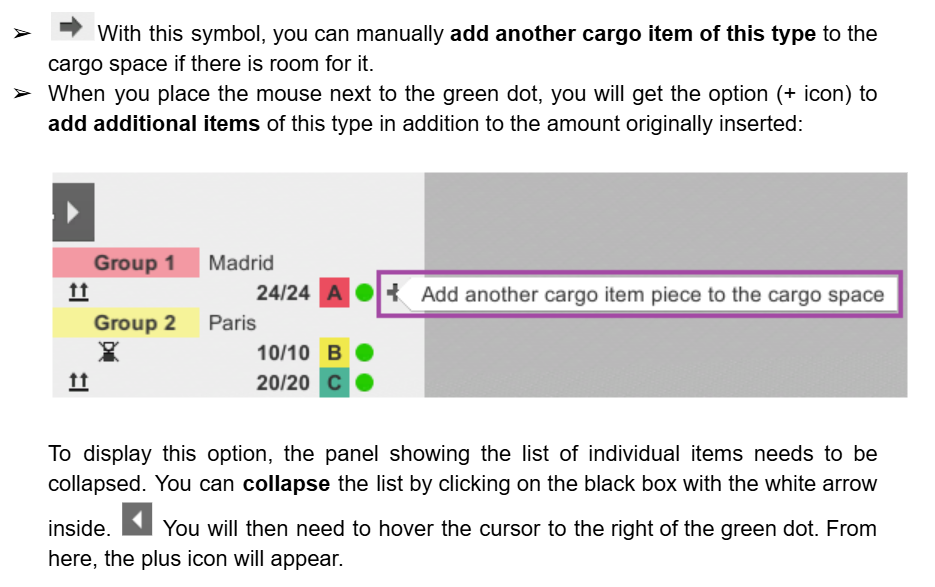
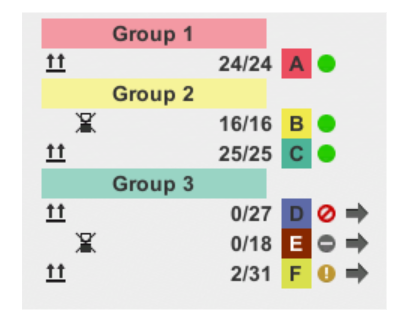
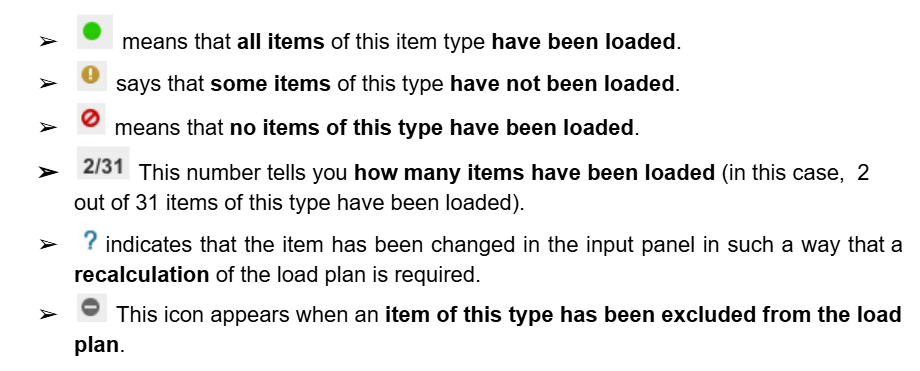
In the input list you can see which items have or have not been loaded:
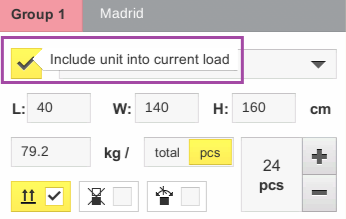
This is how you can exclude/include the item type again: