

Manual Adjustments of an Automatically Calculated Load Plan
Sometimes, there are specific aspects to be considered. For such cases, EasyCargo gives you the possibility to create the load plan manually. You can either adjust the automatically calculated load plan upon your needs, or start loading manually right from the beginning, without using the automated calculations (see further in this chapter).
to move the box, click on it with the left mouse button
by pointing at the green highlighted areas you can choose where the box will be placed
click again and the box will be placed in a new position
please keep in mind that a box can be placed on non-stackable items as well, no constraints are applied when adjusting the load plan manually
moving the box around, the box will automatically snap to the nearest box
you can zoom in and decrease the snapping distance with the mouse roll-wheel
to rotate a box, click on it with the right mouse button, and click any arrow to rotate it to the desired direction
if the box frame is red it means the box is in an invalid position and can´t be placed there
by clicking the right mouse button again you can switch back to move mode and fix the box position
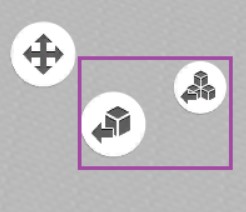
you can remove the box (just one or all of them) from the load plan by the icons with the arrow in the lower right corner, next to the Load button, or hitting the Delete key on the keyboard:
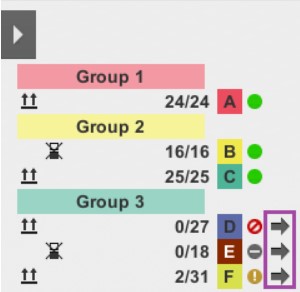
you can add more boxes with the black arrow icon in the input list
By pressing the + button next to the green dot, you can increase the input count of items
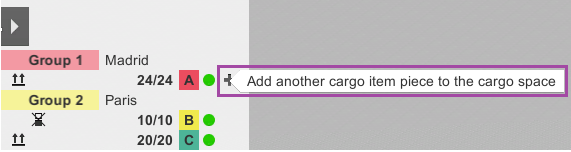
(To get this option displayed, the view of individual items needs to be collapsed.)
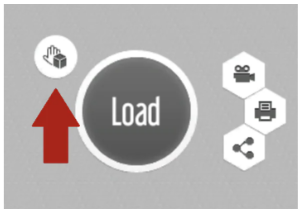
To start loading items manually from scratch, click the hand icon to the left of the “Load” button. This activates manual loading, allowing you to position all items in the cargo space exactly as you wish. You can rotate individual items or entire blocks and move them to different locations.
In our video tutorial, you can find detailed instructions.
You have the option to turn off automatic snapping and choose where to place your selected items. Just click the magnet icon to decide whether you want items to snap automatically or be placed freely. This button appears in the bottom right corner when you are in the manual loading mode.
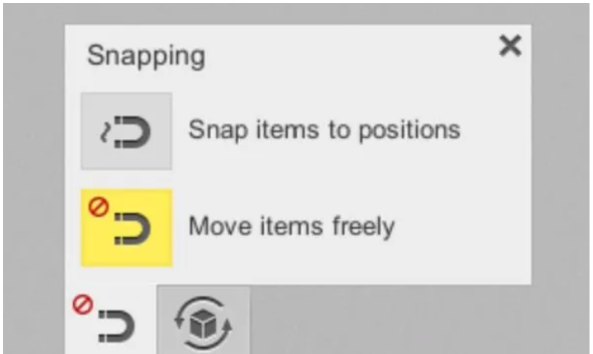
This other button allows you to enable automatic rotation of items during manual loading. When you click it, you can choose whether the item will automatically rotate when placing it into the cargo space. This is particularly helpful when moving items from one block to another:
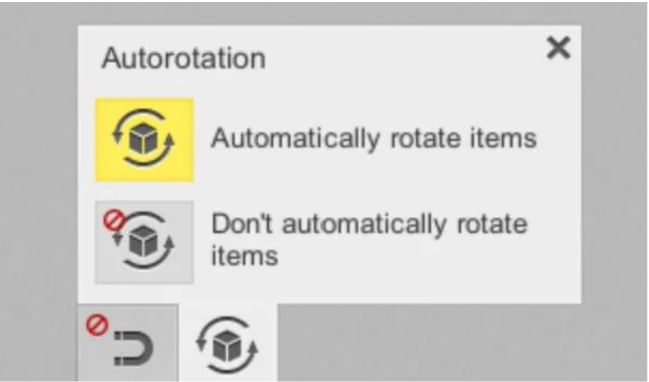
To learn more about the enhanced manual loading control, please check this article.